Adding tasks to your planner
Updated
1. Add a task to your week
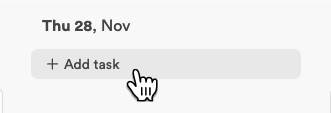
To get started with the planner, create the very first task on your to-do list. Click “+ Add task” under a day and type what you need to get done. Press Enter to save the task; a new empty one opens below it, so you can keep going.
If you need to change a task, click it to open its details on the right, or right-click it and choose Open. In the details you can put the task in a project to keep your to-do list organised, give it a colour, add members, and set its date, time and duration, so you have the right amount of time set aside for everything. The right-click menu also moves a task to another day, adds it to your calendar, duplicates it or deletes it.
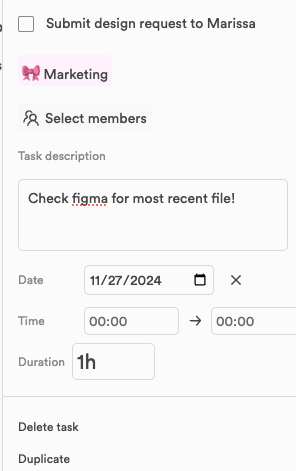
Last but not least, you can add notes in the task description for any extra details or reminders.
2. Timeboxing: drag tasks to your calendar
Timeboxing can be a game changer when it comes to task management. You set specific blocks of time for tasks or projects, which gives your day a structure to follow.
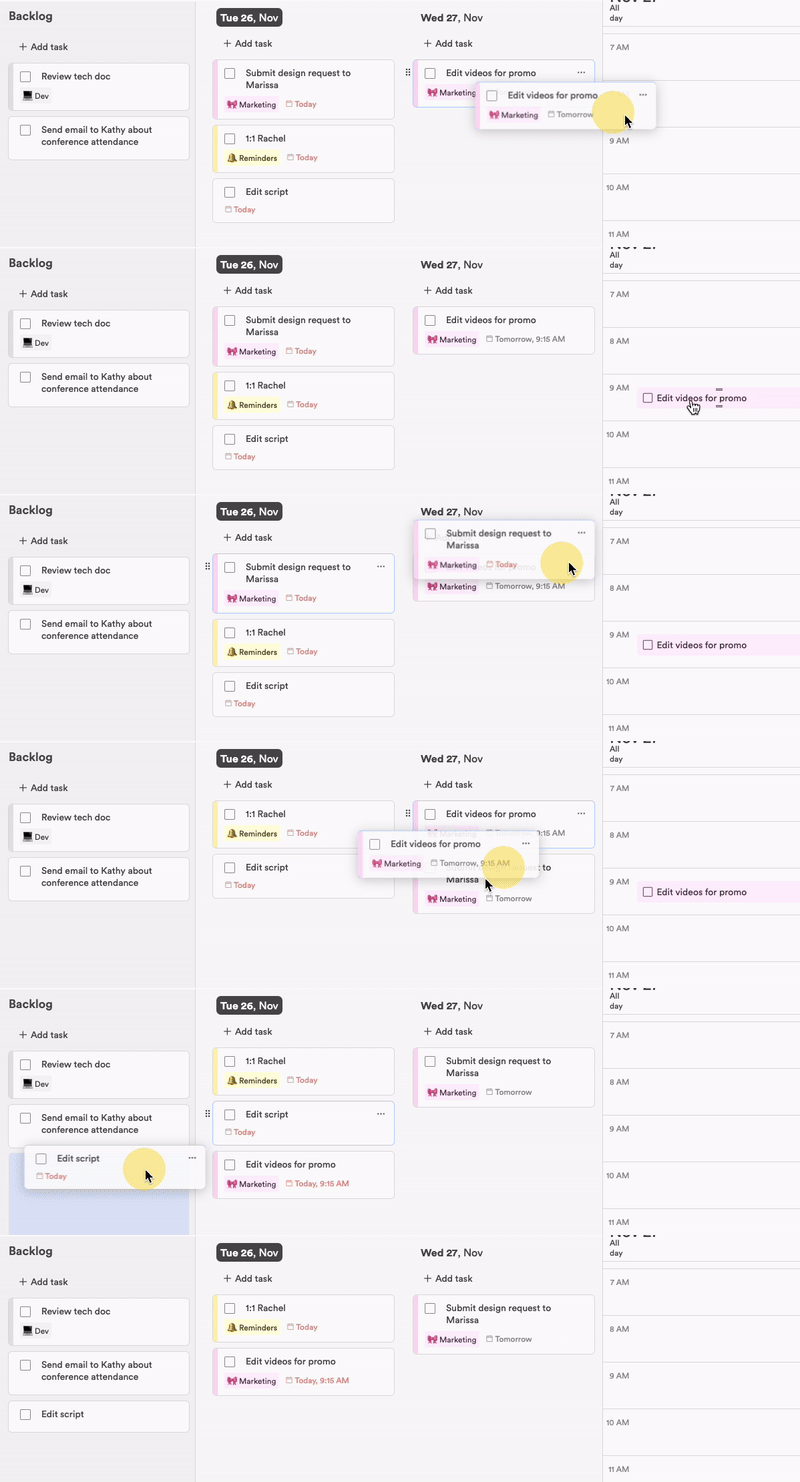
Dragging your tasks onto your calendar gives you a new way to see your upcoming workload. It is flexible and intuitive, helps you prioritise and manage your time, and shows you your whole day at a glance.
Note: when two-way sync is on in Settings > Calendar, a task you put on the calendar is also added to your Google or Outlook calendar, so your plan goes with you. Right-click a task and use Add to calendar to choose Google, Outlook or both. Once the task is on a calendar, that menu item is called Calendars.
3. Removing tasks from the calendar
If you need to take a task off the calendar, right-click it and choose “Remove from calendar”. The task itself stays in your planner.
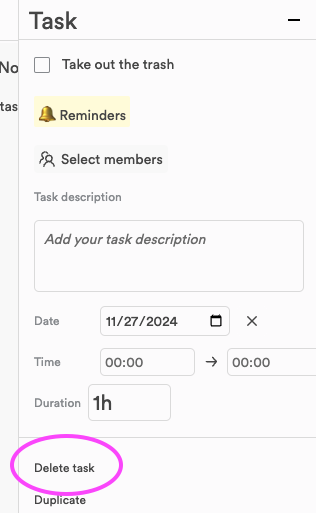
To delete a task altogether, click Delete task at the bottom of its details, or right-click it and choose Delete.
4. Rearrange your tasks across the week
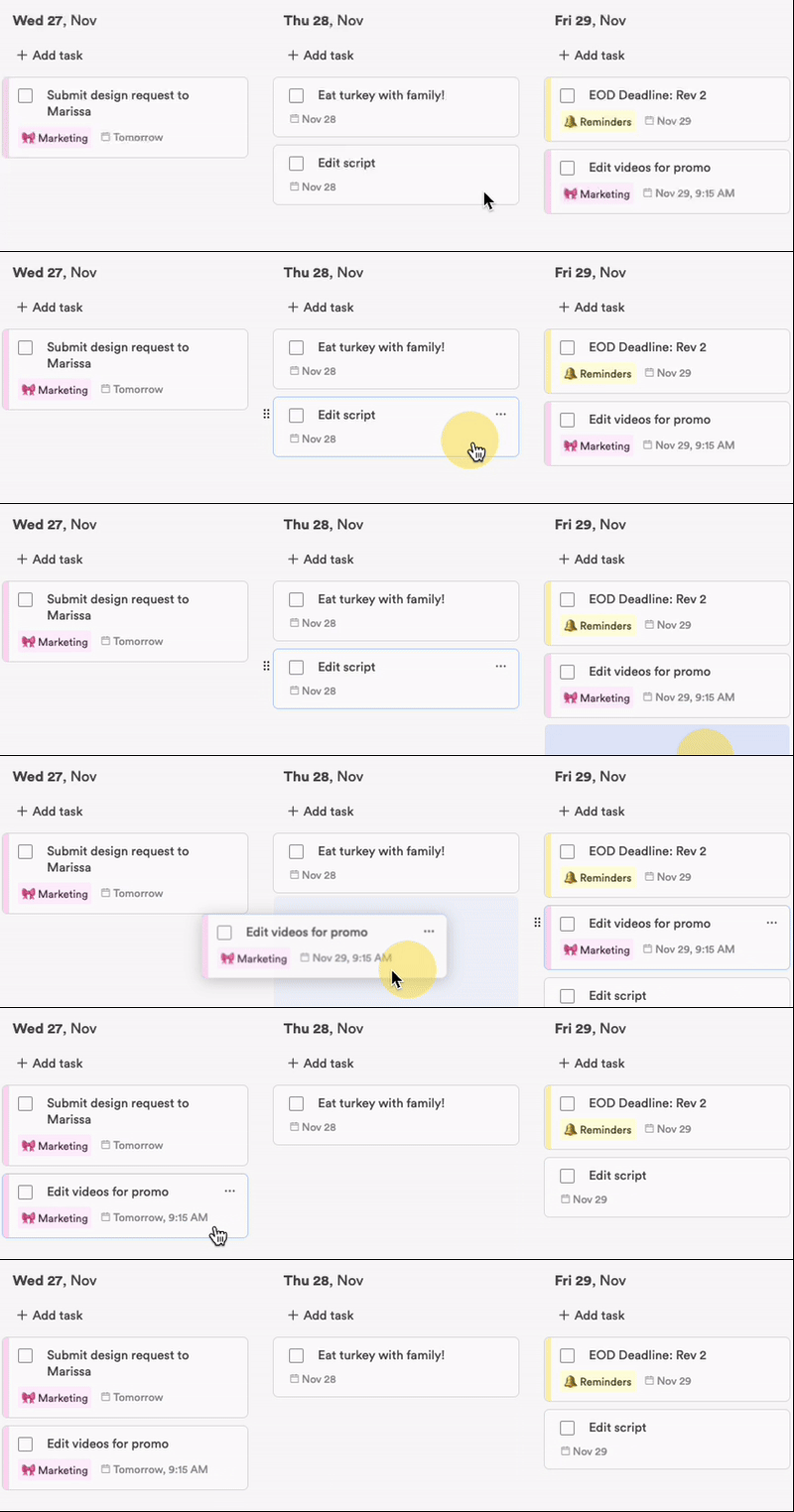
In the Planner's Tasks view, you can drag tasks to different days. It is especially handy when you've just been handed something unexpected that calls for some rethinking: one quick drag and the task is on a better day. You can also right-click a task and use Move to, which offers Today, Tomorrow, Next Monday, the Backlog or a date you pick.
Still stuck?
Write to us at contact@projectbook.co and say what you were trying to do. A screenshot helps.
Contact support