How to view events from multiple calendars
Updated
View events from Google or Outlook calendars
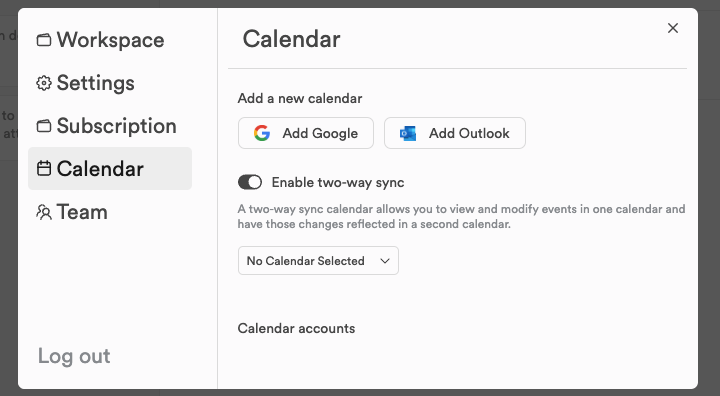
Connect your Google or Outlook calendars to get started. Click Settings at the bottom of the left sidebar, open the Calendar tab, and click Add Google or Add Outlook. You can connect more than one account of each.
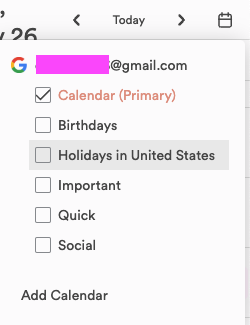
Once a calendar is connected, you can choose which of its calendars to show. Switch the planner to Calendar view, click the calendar icon next to Today at the top, and tick the calendars you want to see. The day calendar on the right of the planner has the same icon, next to its own Today button.
Still stuck?
Write to us at contact@projectbook.co and say what you were trying to do. A screenshot helps.
Contact support