Switching between Planner, Projects and Backlog
Updated
Prefer to watch? There is a short ProjectBook overview video on Loom.
Switch between Planner and Projects view
At the top of the left sidebar you will see two views: Projects and Planner. The name of the workspace you have selected appears above them.
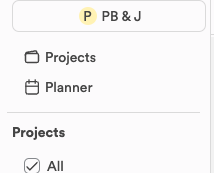
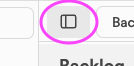
Choose whichever view works best for your work day! The button at the top left of the screen hides and shows the sidebar.
Planner view
With Planner view, you can manage your upcoming week by adding, editing and assigning tasks on a kanban board.
To add a task to the board, click any of the “Add task” buttons under the dates on the board.
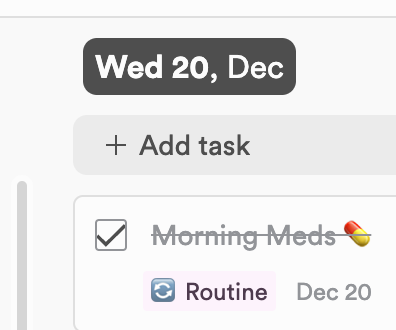
Note: adding a task this way gives it that date. Feel free to drag and drop your tasks between days as you see fit.
Backlog
If you'd like to add a task without a date, use the Backlog. Click Backlog at the top of the planner to open it, then click “Add task”.
The Backlog is only available on a computer, in the desktop app or a web browser. It does not appear on a phone or tablet.
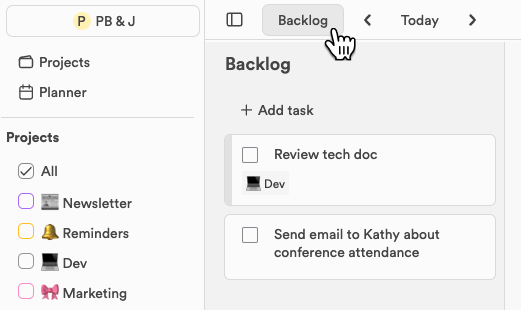
The task you have selected is highlighted in its colour (the project's, unless you gave the task a colour of its own), which makes it easier to see which task you are editing.
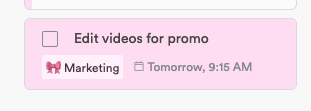
In the Planner, the left sidebar lists your projects, and ticking one filters the board to its tasks. In the centre, you can add tasks quickly and drag them across the days as you plan your week. The panel on the right shows the day's calendar, and opens a task's details when you click the task; the button at the top right hides and shows that panel.
Calendar view
In Calendar view, timeblocking becomes easy!
Add tasks to your backlog, then drag each one into the calendar on the day you'd like to complete it. Move tasks between days just as before, or drag a task's bottom edge to change how long it takes when something comes up during the day. It's a good way to see your whole work week and find pockets of time in your days.
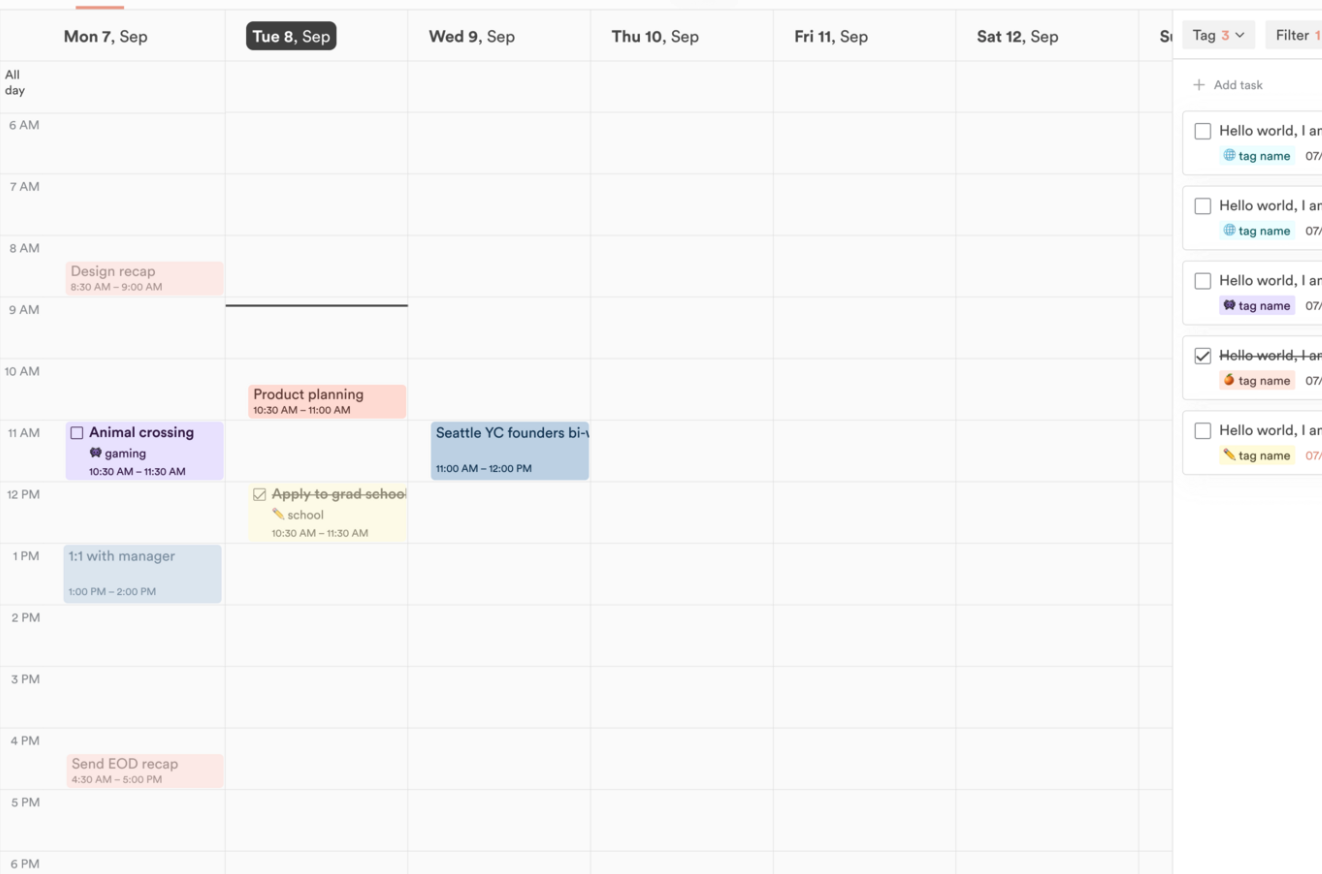
Note: choose which calendars to display by clicking the calendar icon next to Today and ticking or unticking your connected calendars.
Projects view
The Projects view shows all of your projects in one simple dashboard. Click any project to open it and see its tasks, adjust its timeline, update its status, and more!
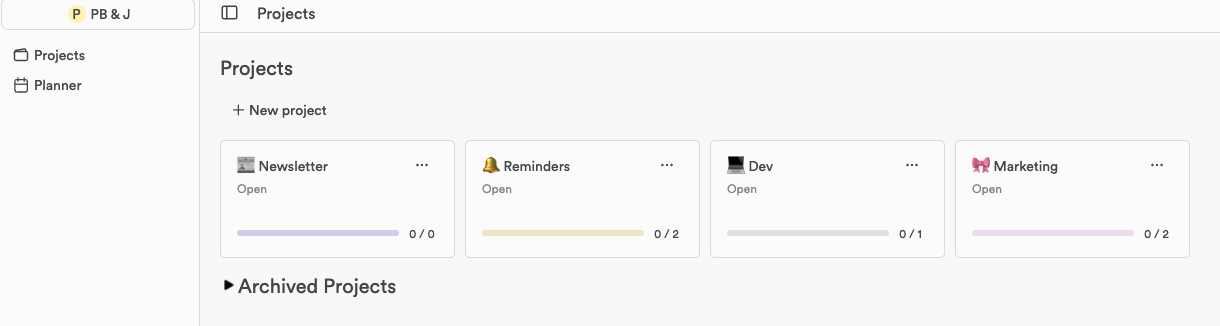
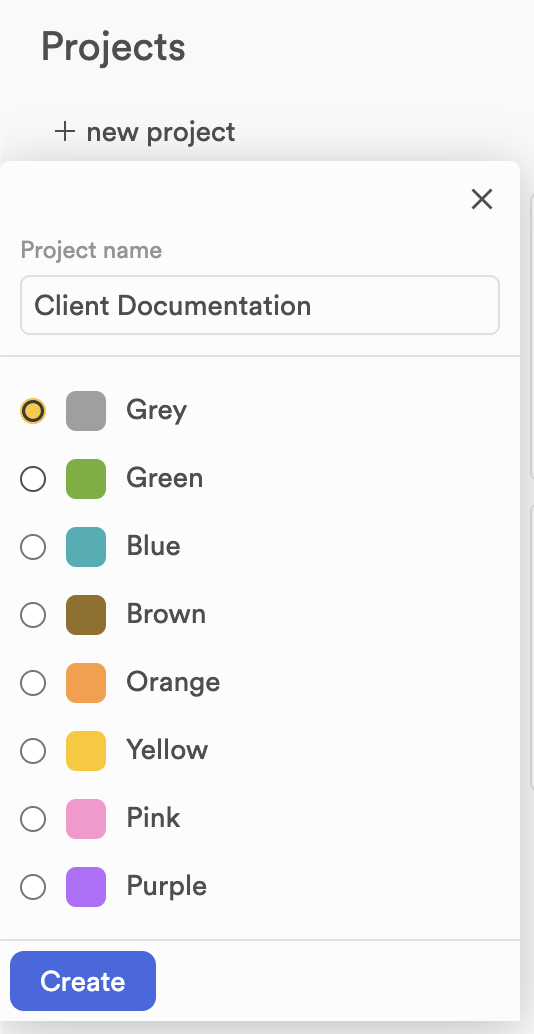
To add a project, click “+ New project” at the top of the page and enter your project's details. Pick an emoji and a colour, add a name, and click Create.
Still stuck?
Write to us at contact@projectbook.co and say what you were trying to do. A screenshot helps.
Contact support