Creating, updating and deleting projects
Updated
1. What's a project?
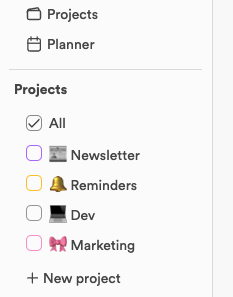
Projects help you organise and see your workload.
Imagine your to-do list is a huge library with books scattered all over the place. Projects act as bookmarks that sort those books into sections. For instance, you could put your work tasks in a “Work” project, personal chores in “Home”, and urgent tasks in “Urgent”.
With projects, you can flip to the section you need without sifting through the entire library.
- Adding a project: when you add a project, you're giving a part of your to-do list a name, so it's easier to find later.
- Colours and emojis: giving each project a colour and an emoji helps you spot which tasks belong to which project. They're small visual cues that make your task list more organised and more fun!
The button at the top left of the screen hides and shows the sidebar. In the sidebar you will see all of your projects, and you can filter your view by project.
2. Add and edit a project
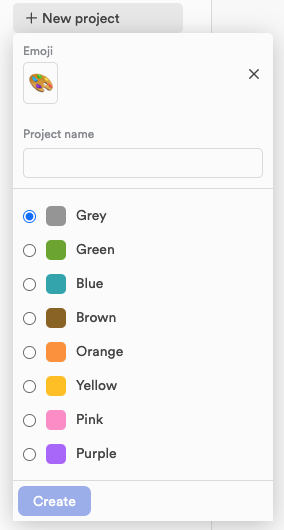
- To add a project, click “+ New project” at the bottom of the project list and type the name of your new project.
- Choose a colour for your project to colour-code its tasks.
- Pick an emoji to go with it.
- Click Create, or press Enter in the name field, to save your new project.
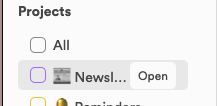
- To edit a project, hover over it in the sidebar and click Open to get to the project's page, where you can change its details.
3. Filter your tasks by project
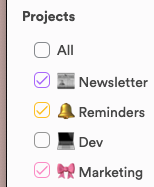
To narrow your view down to a project (such as “Home” or “Project A”), tick the box next to it. The planner then shows only the tasks in the projects you have ticked and hides the others. Tick All to see everything again.
4. Delete a project
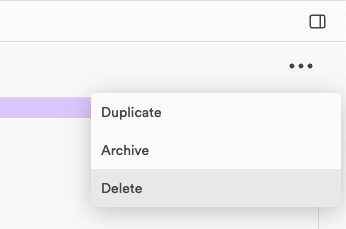
Decided you don't need a project any more? Hover over its name in the sidebar and click Open. On the project's page, click the three dots at the top right, then Delete. The same menu duplicates or archives the project. Archived projects are kept under Archived Projects in the Projects view, and you can unarchive them from there.
Note: deleting a project also deletes every task in it, and it can't be undone, so please be careful! If you might need the project again, archive it instead.
Still stuck?
Write to us at contact@projectbook.co and say what you were trying to do. A screenshot helps.
Contact support