How to connect Outlook Calendar
Updated
How do I connect my Outlook calendar?
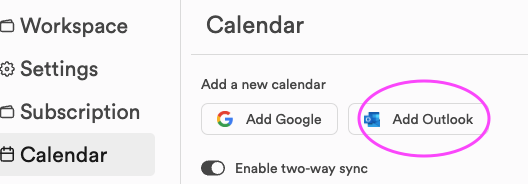
- Click Settings at the bottom of the left sidebar and open the Calendar tab. In Calendar view, the calendar icon next to Today also has an Add Calendar item that opens the same tab.
- Click Add Outlook to start connecting your calendar.
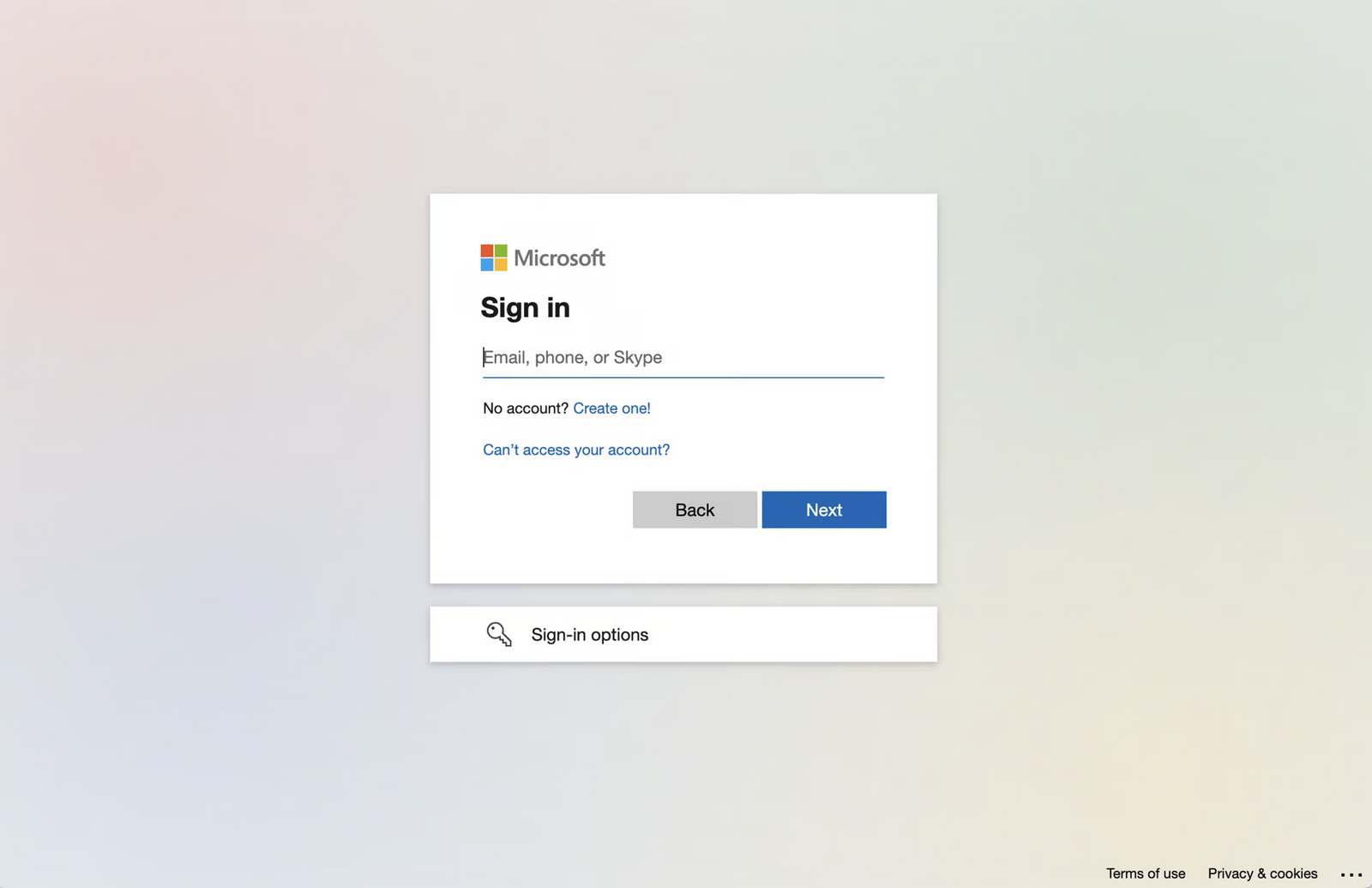
- Sign in with your Outlook or Microsoft account.
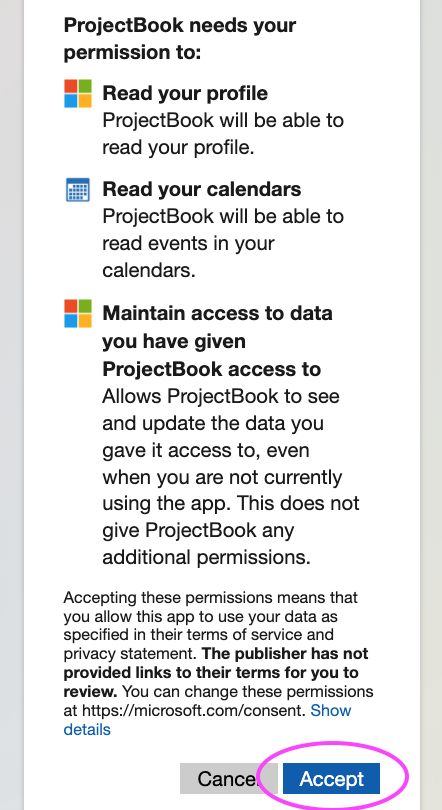
- Follow Microsoft's prompts and click Accept. Accept all the permissions so that ProjectBook works properly.
- Microsoft then brings you back to the Calendar tab in ProjectBook, where the account is listed under Calendar accounts.
My Outlook calendar has stopped syncing
Outlook calendars connected to the previous version of ProjectBook have to be connected once more. Open Settings > Calendar and click Reconnect next to your Outlook account. If there is no Reconnect link, or the account is not listed, click Add Outlook. Then sign in and accept the permissions as above. Your tasks and projects are not affected.
Still stuck?
Write to us at contact@projectbook.co and say what you were trying to do. A screenshot helps.
Contact support