How to connect your Google Calendar
Updated
How do I connect my Google Calendar?
- Click Settings at the bottom of the left sidebar, then open the Calendar tab.
- Click Add Google.
- Choose your Google account.
- Allow all the access ProjectBook asks for. Make sure you tick every box.
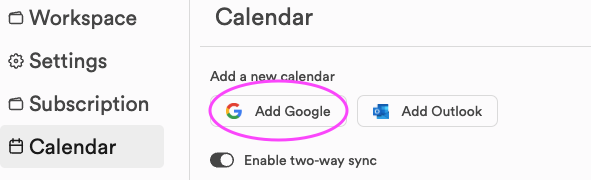
Google then brings you back to the Calendar tab, where the account is listed under Calendar accounts. In Calendar view, the calendar icon next to Today also has an Add Calendar item that opens the same tab.
Why do I see an error after connecting Google?
This can happen for a few reasons.
When you connect your calendar, please make sure you grant ProjectBook every permission it asks for, otherwise parts of the app will not work. If you leave one out, ProjectBook shows a page listing what it needs: click Try Again and tick every box this time.
If you gave all the permissions and still see an error, disconnect the account and connect it again. In Settings > Calendar, click Disconnect next to the account, then click Add Google.
If that still does not fix it, email us at contact@projectbook.co.
How do I connect more than one Google account?
- Click Settings at the bottom of the left sidebar and open the Calendar tab.
- Click Add Google again and choose the other account.
- Accept all the permissions once more.
To choose which of your calendars show in the planner, see how to view events from multiple calendars.
Still stuck?
Write to us at contact@projectbook.co and say what you were trying to do. A screenshot helps.
Contact support